By Devin Golets. A recap of the Webinar Wednesday we co-hosted with the Association of Florida Colleges.
TL;DR. Three practical ways college staff can use Microsoft Copilot:
Interpret data more efficiently with Copilot in Excel. Automate recurring research with Copilot Tasks. Generate custom images for presentations, events, orientation, and campus communications.
The bigger takeaway: you no longer need to be good at prompting. You need to be good at describing the work.
The treasure chest we couldn't open
A year ago, we ran a pilot with a community college in Michigan. Over the course of a semester, we sent about 50,000 text messages to students, checking in on how they were doing, replying automatically, and triaging students to the right supports and humans on campus.
By the end, we had a CSV file with tens of thousands of lines in it. The Dean of Retention and the VP of Student Affairs looked at that file and said, almost word for word: "This is a treasure chest of data. We really want to interpret it."
And then we couldn't open it.
I'm not a data analyst. When I look at a raw CSV, I genuinely don't know what to do with it. So we went looking for someone who did. We found a person on the college's IT team, jumped on an hour-long call, walked them through what the pilot was about, and explained what we were hoping to learn. But they had a long list of other priorities, and they didn't have much context for our project. So the analysis just faded away.
We never produced the report. We never opened the treasure chest and took action on 50,000 lines of important student data.
The thing standing between us and a better experience for those students was never that we didn't care. It wasn't even really the data. It was capacity. We were one overextended colleague away from learning something that could have helped real people, and we ran out of time.
The pilot was deemed a success, but it was ultimately incomplete. It has since drifted into the history books of neat things that a community college has done to support students.
Here's the interesting thing about AI, and more specifically about Microsoft Copilot: if we ran that pilot today, we could have saved about 30 hours of data analyst time and opened that treasure chest, all with one simple prompt inside Excel.
In the session we co-hosted with the Association of Florida Colleges, we used that story to frame three practical ways college staff can get more out of Microsoft Copilot. The key takeaway:
You no longer need to be good at prompting. You need to be good at describing the work.
In action, that means describing the work you do, the context around it, and the outcome you want. Then you can even ask AI to write the prompt for you.
1. Interpret data more efficiently
Microsoft tool: Excel
Use case: Save 30+ hours of data cleaning with one prompt, and turn raw data into a dashboard you can start interpreting in minutes.
Who this is for: Everyone
Copilot now lives inside Excel, and the prompt that produces a working executive dashboard can be about as simple as it gets: "Can you look at the raw data and produce an executive dashboard for me?" A minute or two later, the dashboard exists in a new tab. Work that once took 25 to 30 hours of a specialist's time now takes a few minutes to start.
That last word matters: start. Data engineers joke that 80% of the job is cleaning data before any insight appears. That 80% is what just got easier. But the session was equally clear about the boundaries.
- Whatever Copilot produces is a first draft, not a final say. Its job is to get you asking better questions, not to replace analysis.
- Deeper work still belongs with a real analyst. The difference is that the analyst can now spend more of their time on interpretation, judgment, strategy, and helping leaders understand what the data means.
- Keep the work simple and narrow. One table at a time. One clear question. Very complex, multi-dataset prompts are where accuracy can start to slip.
- Traditional tools still work. A pivot table or a basic formula is often the right answer. The goal is to use AI where it removes friction, not to over-index on it for things that never needed it.
Questions about Copilot in Excel
Attendees pushed on the practical edges, and the answers were useful. Copilot reads each tab as its own data source, so consolidating across tabs is a matter of guiding it conversationally. For questions like "when are students most engaging with this service?", the key is having a timestamp column in your export. Most systems include a "created date" or similar field that does the job.
The dynamic is not that different from briefing a human analyst. You start with a question, look at the first version of the output, and then ask better follow-up questions.
The elephant in the room
The session also named the discomfort directly: a dashboard that once required hiring someone can now begin with one sentence. So, is AI coming for people's jobs?
The honest answer from the call was no, at least not in the simplistic way that story is often told. What actually happens is that analysts stop spending as much of their time on the monotonous work and get more room to sit with leadership, interpret patterns, and ask better questions. The change is to tasks, not to the need for people.
In higher ed, that distinction matters. The goal is not just to save time. The goal is to decide what we do with the time we get back.
What about data security in Copilot and Excel?
On data security, the guidance was simple: check with your IT team and follow your institution's policies. Microsoft says that with enterprise data protection, prompts, responses, and data accessed through Microsoft Graph are not used to train foundation models. But the specific controls, policies, and protections can vary depending on your institution's subscription plan and how your Microsoft environment is configured.
That means Copilot may be much more appropriate for institutional work than public AI tools, especially when you are signed in with your work account. But for anything involving student personal information, health information, or sensitive institutional data, confirm with your IT department before uploading or analyzing anything.
2. Automate research relevant to your role
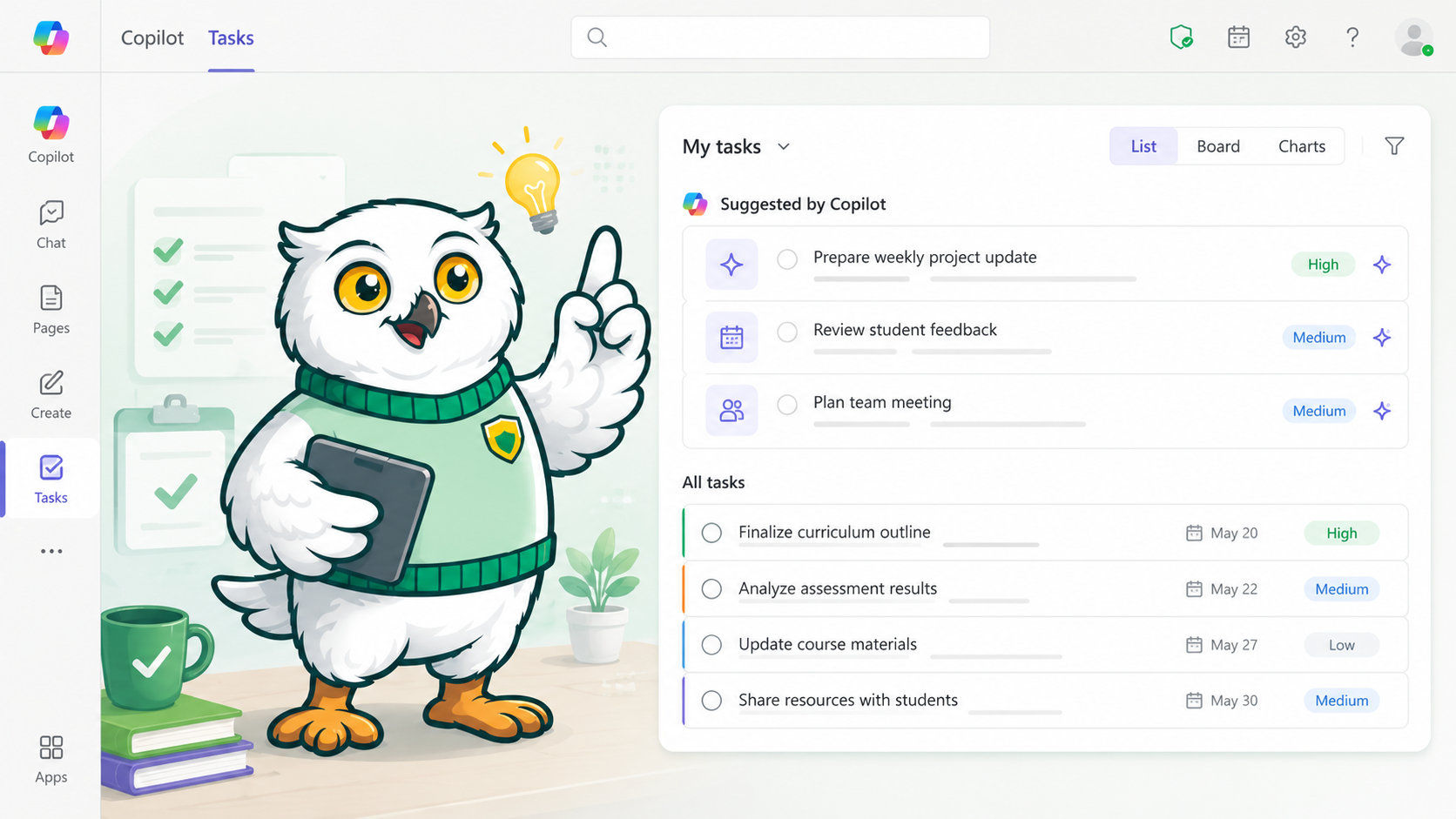
Microsoft tool: Copilot Tasks (scheduled prompts)
Use case: Save time by automating recurring research.
Who this is for: Everyone
Copilot has a feature often referred to as Tasks, or scheduled prompts, that changes the model. Instead of asking AI a question once, you give it a recurring job. You write one prompt, something like "monitor this topic and summarize it for me every Monday at 9 a.m.", and Copilot runs the search on schedule. The result is something closer to a personalized newsletter built around your role. It is a first step from chatting with AI to giving AI a job.
In the session, we shared an example of a standing task tracking AI activity at community colleges. That task surfaced an industry partnership at a Florida campus that we had not gone looking for manually. The point was not that the information was impossible to find. The point was that Copilot could find it on a schedule without us having to remember to search for it every week.
Where this applies is wide open. A professor might track new research in their field. A grants office might monitor upcoming funding windows. A government relations team might follow legislative updates in their state. A recruitment team might track competitor programs, tuition changes, new credentials, or admissions updates from nearby institutions. The old version of that work usually meant Google searches, a dozen open tabs, newsletter subscriptions, and results that depended entirely on whether you had time to go looking.
A simple way to start
If you are not sure where to begin, try this. Open Copilot Chat and tell it your role, your weekly responsibilities, and the kinds of information you usually need to stay on top of. Then ask: "What are a few recurring topics I should monitor in my role?" Once it gives you ideas, ask: "Can you turn the best one into a prompt I can use as a recurring Copilot Task?"
That is the bigger lesson from the webinar: you do not need to write the perfect prompt yourself. You can describe the work and ask AI to help you shape the prompt. If you do not see Tasks or scheduled prompts in Copilot, it may be a licensing or admin setting. Check with your IT team.
3. Generate custom images for campus use cases
Microsoft tool: PowerPoint and Copilot image generation
Use case: Generate custom visuals for presentations, events, orientation, internal communications, and campus campaigns.
Who this is for: Everyone
Copilot can generate custom images, including directly inside PowerPoint. In some cases, it can read what is on your slide and help create an image that fits the context, with no separate tab, no stock-photo hunt, and no downloading from random websites. That can be useful for marketing assets, event branding, presentation visuals, orientation materials, workshop slides, social media concepts, and internal communications.
This is the fun use case, but the lesson underneath it is practical: the friction of creating decent visual material has dropped dramatically. Work that used to mean searching Google Images, browsing stock-photo sites, checking brand folders, or settling for generic visuals can now start with a prompt.
But the more useful technique is this: do not write the image prompt yourself. Ask AI to write it first. Tailwind's own mascot, Ollie, came from exactly this. We asked AI to generate a detailed prompt for a college-style mascot, including style, format, personality, and visual details that we would not have thought to write ourselves. Then we used that prompt to generate the image.
The same technique can apply across campus. You might turn a campus photo into a cartoon-style illustration, create a themed image for an event, or generate a concept visual for a presentation. You can also restyle an existing asset, for example turning a mascot into a LEGO-style figure or an action figure for a themed campaign. As always, use judgment. If something is public-facing, brand-sensitive, or closely based on an existing work, loop in the appropriate team.
FAQ
What is Microsoft Copilot Tasks?
Copilot Tasks, also referred to in Microsoft documentation as scheduled prompts, allow you to run a prompt on a recurring schedule. For example, you might monitor news, grants, program changes, policy updates, or competitor activity and receive a summary every Monday morning. It is a simple first step into automation: instead of chatting with AI once, you assign it a recurring job. It may not be turned on in every Microsoft tenant. If you do not see it, check with your IT team.
Is it safe to put college data into Copilot?
It depends on your institution's license, configuration, and policies. Microsoft says that under enterprise data protection, prompts, responses, and data accessed through Microsoft Graph are not used to train foundation models. That is an important distinction from many public AI tools. But that does not mean every use case is automatically approved. For student personal information, health information, financial information, or sensitive institutional data, confirm with your IT department first. Your local policy should always guide what you can and cannot upload or analyze.
Do I need to be good at prompting to use Copilot?
No. That skill matters less every month. The more durable skill is describing what you want clearly, the way you would brief a person you are training. A practical technique is context first, then the task. Talk the project through conversationally. Use voice dictation if that helps. Explain your role, the audience, the outcome you want, and anything the AI should know before it helps. Then ask it to write the prompt for you. You can even ask it to ask you clarifying questions before it starts. The dashboard example from the session came from a single plain-English sentence. The magic was not the wording. The magic was knowing what work we wanted done.
Do I have to cite images or content made with AI?
There is no settled rule yet. AI-generated images generally do not require a citation in the same way a stock photo or outside source might. However, many tools now embed metadata indicating that an image was AI-generated, and you should be cautious when closely referencing an existing image, brand asset, or creative work. Some people add a simple footnote noting that AI assisted with the work. For anything brand-sensitive, public-facing, or credibility-sensitive, check with your marketing or communications team.
Where to learn more
You can view the webinar recording here, and this session was run in partnership with the Association of Florida Colleges. We also share free research, examples, and practical AI readiness throughout our website.
AI training for staff is one of the most practical ways to help a campus become more AI Ready. It can also be one of the most cost-effective ways to raise AI fluency, build confidence, and help people find useful ways to save time in their day-to-day work. If your campus is thinking about practical AI training for staff, Microsoft Copilot use cases, or what it means to become AI Ready, we are happy to compare notes or talk through what might be useful. You can schedule a free AI Consult.